> ## Documentation Index
> Fetch the complete documentation index at: https://resend.com/docs/llms.txt
> Use this file to discover all available pages before exploring further.
# What if my domain is not verifying?
> Learn what steps to take when your domain doesn't seem to be verifying.
Verifying a domain involves a few steps:
1. Add your domain to Resend
2. Copy the required DNS records from Resend
3. Add these records to your DNS provider
4. Wait for verification to complete
When this process is completed correctly, your domain will often verify within 15 minutes of adding the DNS records.
If you are having any conflict issues with the `MX` records, [check out this
guide](/docs/knowledge-base/how-do-i-avoid-conflicting-with-my-mx-records).
## Common verification issues
When your domain doesn't verify as expected, it's typically due to DNS configuration issues. This guide will help you troubleshoot and resolve common verification problems.
Resend provides real-time DNS validation when viewing your domain details.
When viewing your domain, you'll see specific error messages and visual
indicators highlighting any issues with your DNS records in case you've added
them incorrectly.
### Incorrect DNS records
Usually when a domain doesn't verify, it's because the DNS records were not added correctly. Here's how to check:
1. Confirm that you've added every record shown in your domain's **Records** tab
2. Verify that the records are added at the correct location (the `send` subdomain, not the root domain)
3. Check that record values match exactly what Resend generated for you
4. Look for red wavy underlines on the domain details page (these indicate specific DNS record errors)
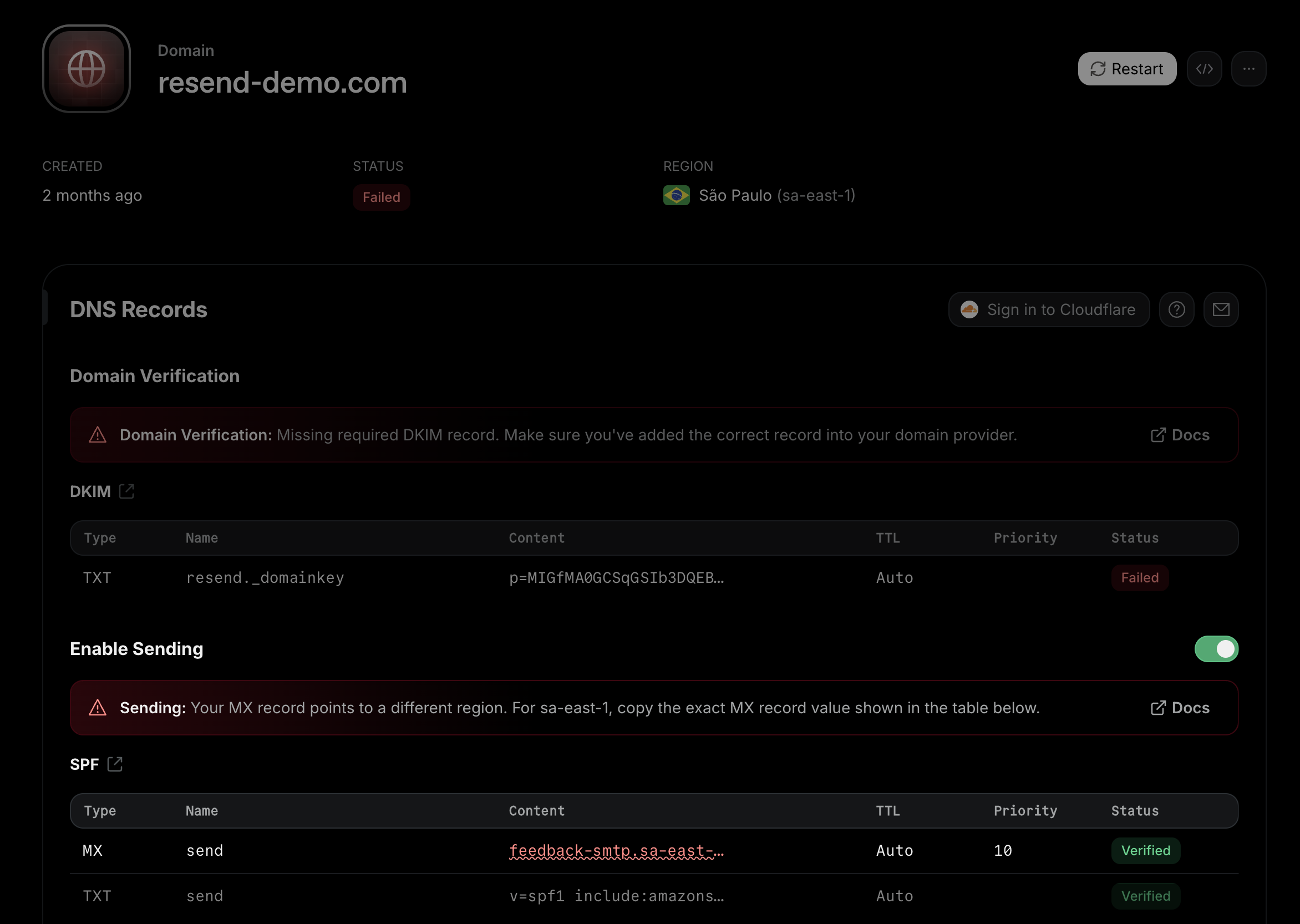 The exact set of records depends on when your domain was created. Older
domains show a `TXT` and an `MX` record for SPF, and both must be correct for
SPF to verify at all. Domains created after August 2026 may show `CNAME`
records instead. If you are shown two `CNAME` records, each is verified on its
own, so one can verify while the other doesn't: your domain then shows as
`partially_verified`, and you can still send, but without a fallback sending
server.
### Proxied CNAME records
If your domain shows `CNAME` records for sending, check that they're not proxied at your DNS provider. On Cloudflare, this means the cloud icon next to the record must be gray (**DNS only**), not orange. Proxied records don't resolve as `CNAME`s, so verification never completes.
### CNAME records conflicting with existing records
A `CNAME` record can't co-exist with any other record on the same subdomain. If your DNS provider rejects the record, or verification keeps failing on a subdomain that already has an `A`, `TXT`, or `MX` record, you have two options:
1. Remove the existing records from that subdomain
2. [Configure a different Return-Path subdomain](/docs/dashboard/domains/custom-return-path) (e.g. `bounce.example.com`) and add the records Resend generates for it
### DNS provider auto-appending domain names
Some DNS providers automatically append your domain name to record MX values, causing verification failures.
**Problem:**
Your MX record appears as:
`feedback-smtp.eu-west-1.amazonses.com.example.com`
Instead of:
`feedback-smtp.eu-west-1.amazonses.com`
**Solution:**
In your DNS provider, add a trailing period (dot) at the end of the record value:
`feedback-smtp.eu-west-1.amazonses.com.`
The trailing period tells your DNS provider that this is a fully qualified domain name that must not be modified.
Note: The region your domain is added to is in this MX record. It may be
`us-east-1`, `eu-west-1`, `ap-northeast-1`, or `sa-east-1` depending on the
region.
The same applies to the `CNAME` records shown for newer domains: if the value in your DNS provider shows the Resend host followed by your own domain name, add a trailing period to the value.
### Nameserver conflicts
If your domain's DNS is managed in multiple places (e.g., Vercel, Cloudflare, your domain registrar), you might be adding records in the wrong location.
**How to check:** Run a nameserver lookup for your domain using a tool like [dns.email](https://dns.email) to see which provider actually controls your DNS. Add the Resend records at that provider, not elsewhere.
### Region mismatch errors
If your MX records point to a different AWS region than where your domain is configured, you'll see a "region-mismatch" error. This happens when:
* Your domain is configured in one region (e.g., `us-east-1`)
* But your MX record points to a different region (e.g., `eu-west-1`)
**Solution:** Update your MX record to match the region shown in your Resend domain configuration. The correct MX record value is displayed in the DNS records table on your domain details page.
### Multiple regions detected
If you have multiple MX records pointing to different AWS regions, you'll see a "multiple-regions" error. All MX records for a domain must point to the same region.
**Solution:** Remove any MX records pointing to incorrect regions, keeping only the one that matches your domain's configured region.
Both region errors only apply to domains that show an `MX` record for SPF. If
your domain shows `CNAME` records instead, the region is handled by the Resend
host the record points to, so there's nothing to match.
### DKIM record value mismatches
The DKIM record must match exactly what Resend generated. Common mistakes include:
1. Adding extra quotes or spaces
2. Truncating long values
3. Adding SPF information to the DKIM record
4. Not copying the entire value
Always copy and paste the exact value from Resend's domain configuration page. If there's a mismatch, you'll see a red wavy underline on the incorrect value.
### DNS Propagation
After adding or correcting your DNS records:
1. DNS changes can take up to 72 hours to propagate globally (though often much faster)
2. Use the "Restart verification" button in the Resend dashboard to trigger a fresh verification check
3. If verification still fails after 24 hours, use [dns.email](https://dns.email) to check if your records are visible publicly
## Get more help
If you've followed all the steps above and your domain still isn't verifying, contact [Resend support](https://resend.com/help) with:
1. Your domain name
2. Screenshots of your DNS configuration
Our team will help identify any remaining issues preventing successful verification.
Tools like [dns.email](https://dns.email) allow you to check your DNS records in the browser.
Go to this URL and replace `example.com` with the domain you added in Resend.
The exact set of records depends on when your domain was created. Older
domains show a `TXT` and an `MX` record for SPF, and both must be correct for
SPF to verify at all. Domains created after August 2026 may show `CNAME`
records instead. If you are shown two `CNAME` records, each is verified on its
own, so one can verify while the other doesn't: your domain then shows as
`partially_verified`, and you can still send, but without a fallback sending
server.
### Proxied CNAME records
If your domain shows `CNAME` records for sending, check that they're not proxied at your DNS provider. On Cloudflare, this means the cloud icon next to the record must be gray (**DNS only**), not orange. Proxied records don't resolve as `CNAME`s, so verification never completes.
### CNAME records conflicting with existing records
A `CNAME` record can't co-exist with any other record on the same subdomain. If your DNS provider rejects the record, or verification keeps failing on a subdomain that already has an `A`, `TXT`, or `MX` record, you have two options:
1. Remove the existing records from that subdomain
2. [Configure a different Return-Path subdomain](/docs/dashboard/domains/custom-return-path) (e.g. `bounce.example.com`) and add the records Resend generates for it
### DNS provider auto-appending domain names
Some DNS providers automatically append your domain name to record MX values, causing verification failures.
**Problem:**
Your MX record appears as:
`feedback-smtp.eu-west-1.amazonses.com.example.com`
Instead of:
`feedback-smtp.eu-west-1.amazonses.com`
**Solution:**
In your DNS provider, add a trailing period (dot) at the end of the record value:
`feedback-smtp.eu-west-1.amazonses.com.`
The trailing period tells your DNS provider that this is a fully qualified domain name that must not be modified.
Note: The region your domain is added to is in this MX record. It may be
`us-east-1`, `eu-west-1`, `ap-northeast-1`, or `sa-east-1` depending on the
region.
The same applies to the `CNAME` records shown for newer domains: if the value in your DNS provider shows the Resend host followed by your own domain name, add a trailing period to the value.
### Nameserver conflicts
If your domain's DNS is managed in multiple places (e.g., Vercel, Cloudflare, your domain registrar), you might be adding records in the wrong location.
**How to check:** Run a nameserver lookup for your domain using a tool like [dns.email](https://dns.email) to see which provider actually controls your DNS. Add the Resend records at that provider, not elsewhere.
### Region mismatch errors
If your MX records point to a different AWS region than where your domain is configured, you'll see a "region-mismatch" error. This happens when:
* Your domain is configured in one region (e.g., `us-east-1`)
* But your MX record points to a different region (e.g., `eu-west-1`)
**Solution:** Update your MX record to match the region shown in your Resend domain configuration. The correct MX record value is displayed in the DNS records table on your domain details page.
### Multiple regions detected
If you have multiple MX records pointing to different AWS regions, you'll see a "multiple-regions" error. All MX records for a domain must point to the same region.
**Solution:** Remove any MX records pointing to incorrect regions, keeping only the one that matches your domain's configured region.
Both region errors only apply to domains that show an `MX` record for SPF. If
your domain shows `CNAME` records instead, the region is handled by the Resend
host the record points to, so there's nothing to match.
### DKIM record value mismatches
The DKIM record must match exactly what Resend generated. Common mistakes include:
1. Adding extra quotes or spaces
2. Truncating long values
3. Adding SPF information to the DKIM record
4. Not copying the entire value
Always copy and paste the exact value from Resend's domain configuration page. If there's a mismatch, you'll see a red wavy underline on the incorrect value.
### DNS Propagation
After adding or correcting your DNS records:
1. DNS changes can take up to 72 hours to propagate globally (though often much faster)
2. Use the "Restart verification" button in the Resend dashboard to trigger a fresh verification check
3. If verification still fails after 24 hours, use [dns.email](https://dns.email) to check if your records are visible publicly
## Get more help
If you've followed all the steps above and your domain still isn't verifying, contact [Resend support](https://resend.com/help) with:
1. Your domain name
2. Screenshots of your DNS configuration
Our team will help identify any remaining issues preventing successful verification.
Tools like [dns.email](https://dns.email) allow you to check your DNS records in the browser.
Go to this URL and replace `example.com` with the domain you added in Resend.
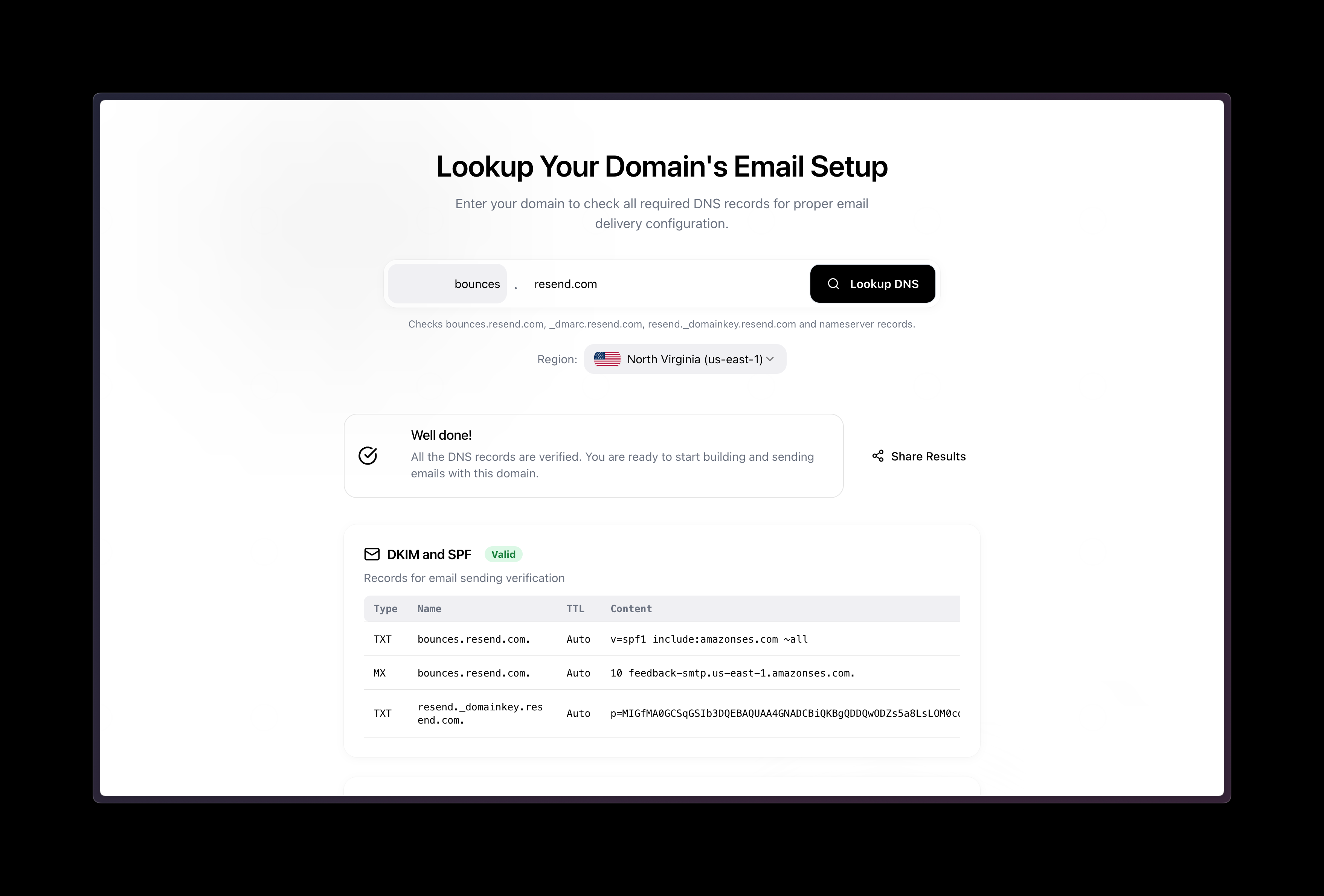 You are looking to see the same values that you see in Resend.
Checking your DNS records in the terminal is just as easy. You can use the `nslookup` command and a record type flag to get the same information.
Replace `example.com` with whatever you added as the domain in Resend:
Check your DKIM `TXT` record:
```
nslookup -type=TXT resend._domainkey.example.com
```
Check your SPF `TXT` record:
```
nslookup -type=TXT send.example.com
```
Check your SPF `MX` record:
```
nslookup -type=MX send.example.com
```
If your domain shows `CNAME` records for sending instead, check each of the shown CNAME records by name, as shown below:
```
# If your domain shows two CNAME records, check both
# Otherwise, only check the one that is shown in the Resend dashboard
nslookup -type=CNAME send.example.com
nslookup -type=CNAME rsend.example.com
```
You are looking to see the same values that you see in Resend.
Checking your DNS records in the terminal is just as easy. You can use the `nslookup` command and a record type flag to get the same information.
Replace `example.com` with whatever you added as the domain in Resend:
Check your DKIM `TXT` record:
```
nslookup -type=TXT resend._domainkey.example.com
```
Check your SPF `TXT` record:
```
nslookup -type=TXT send.example.com
```
Check your SPF `MX` record:
```
nslookup -type=MX send.example.com
```
If your domain shows `CNAME` records for sending instead, check each of the shown CNAME records by name, as shown below:
```
# If your domain shows two CNAME records, check both
# Otherwise, only check the one that is shown in the Resend dashboard
nslookup -type=CNAME send.example.com
nslookup -type=CNAME rsend.example.com
```
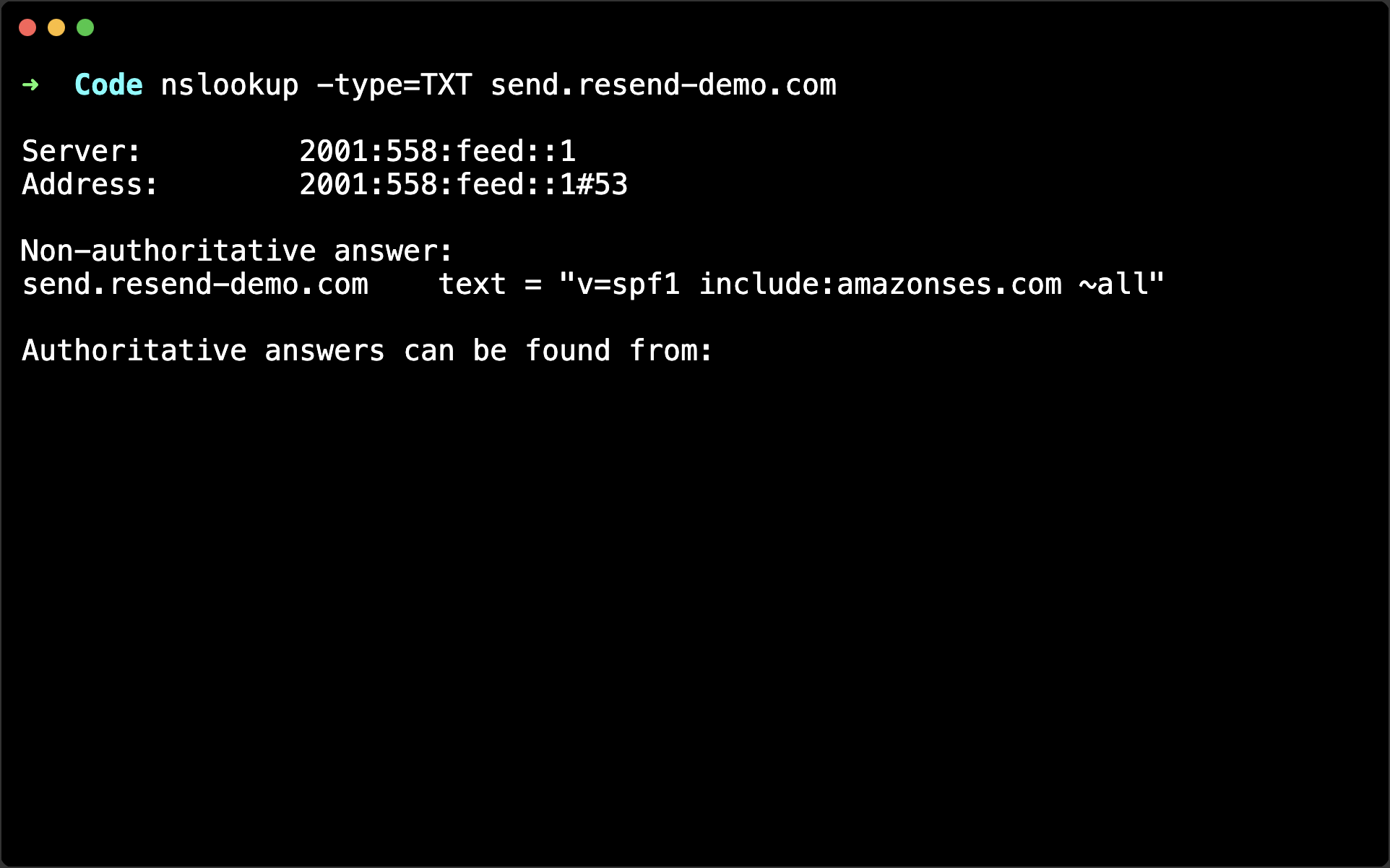 You are looking to see the same values that you see in Resend.